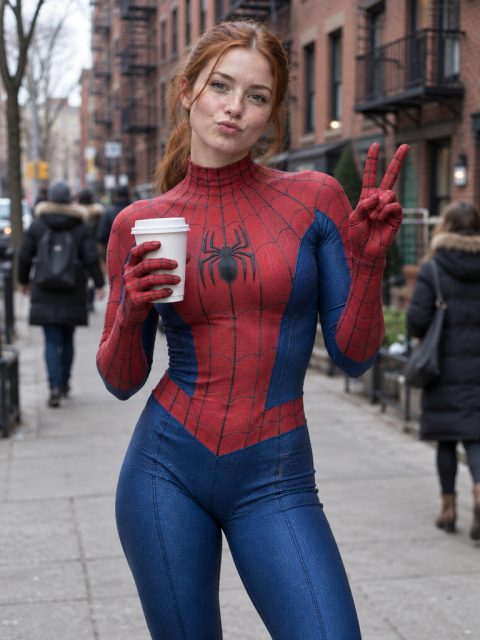
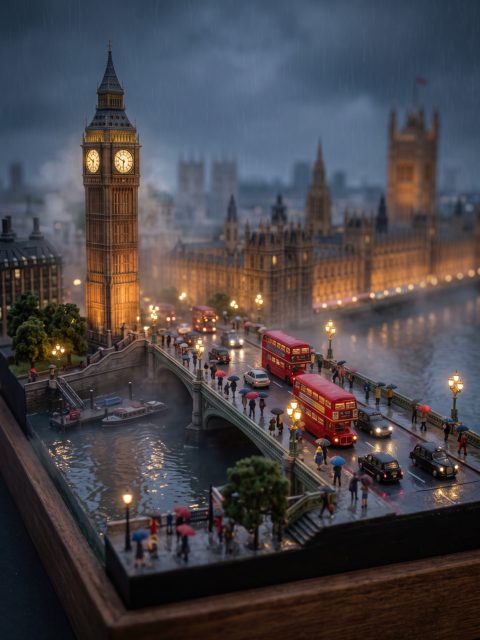
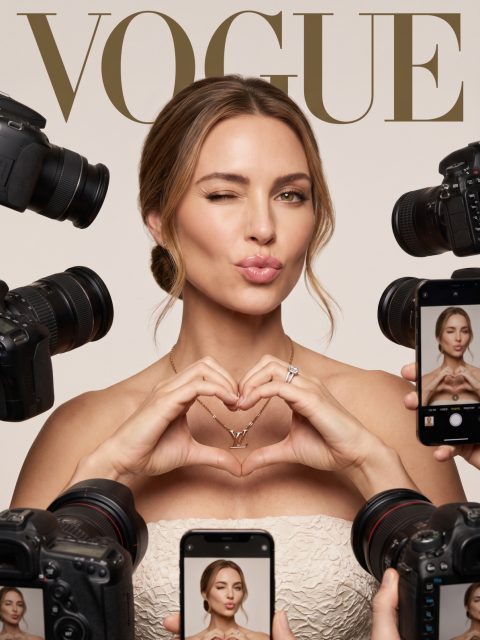
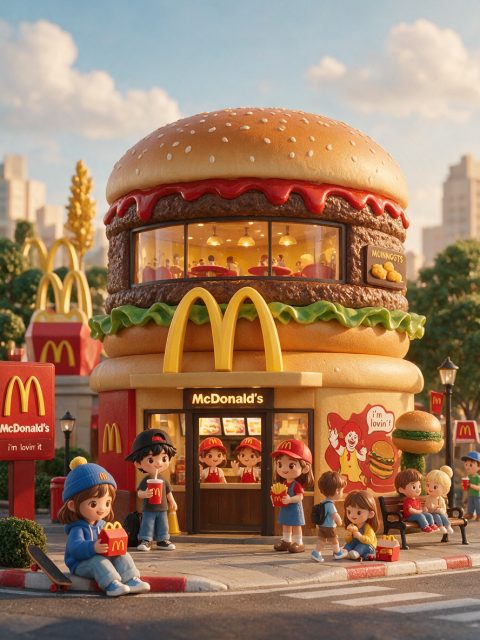
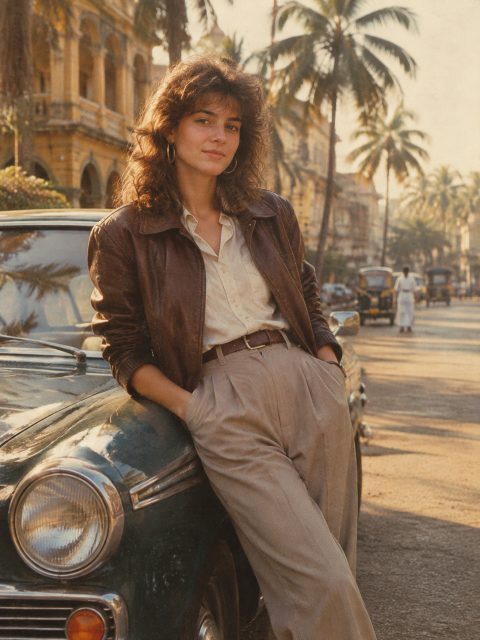
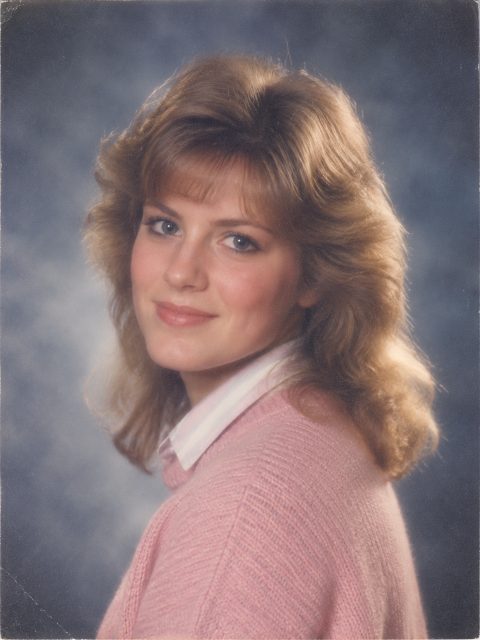
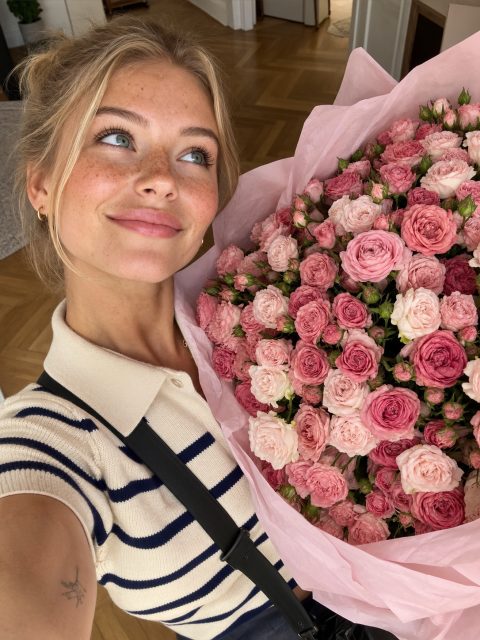
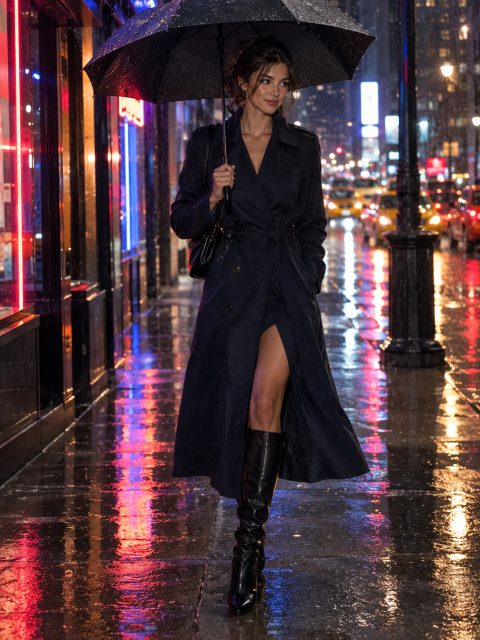
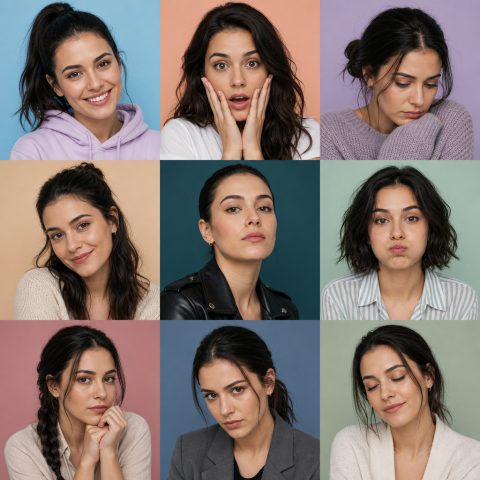
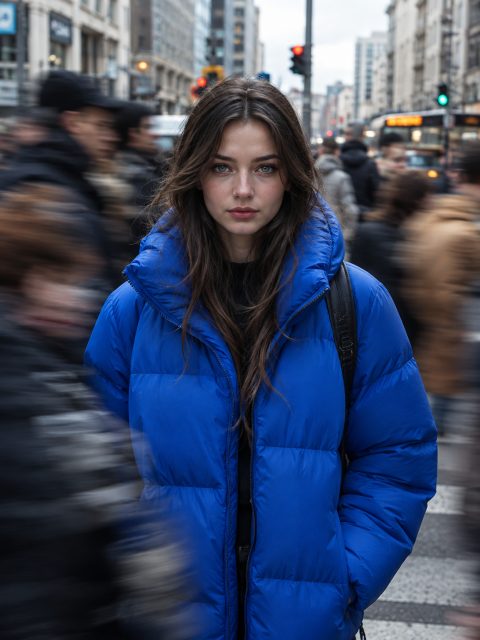
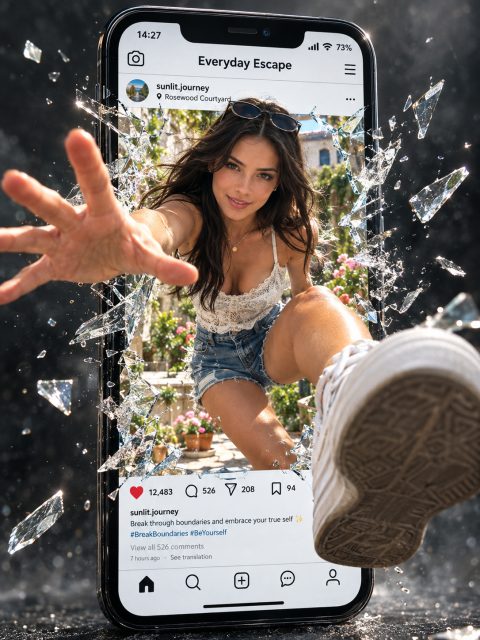
Edit, transform and enhance any photo with a text prompt – just describe the change.
See what the AI photo editor can do
Change outfits, locations, lighting, hairstyles, and more. Upload a photo and create professional-quality images in seconds.
BeforeAfter
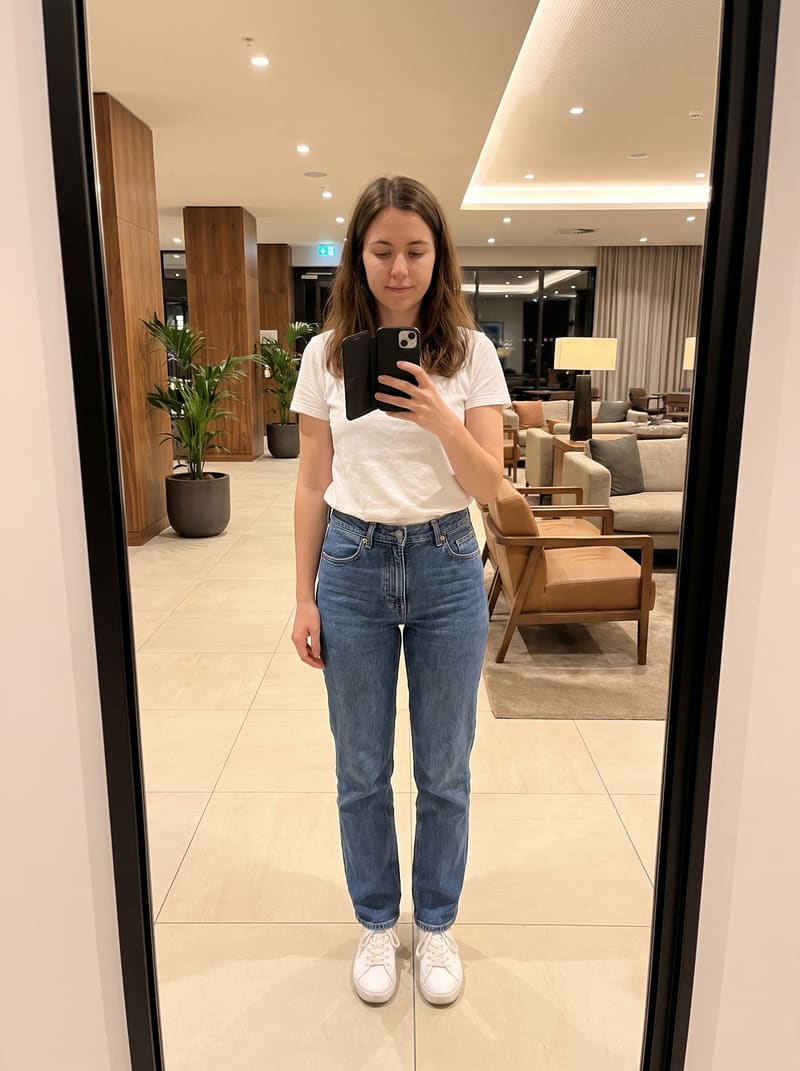
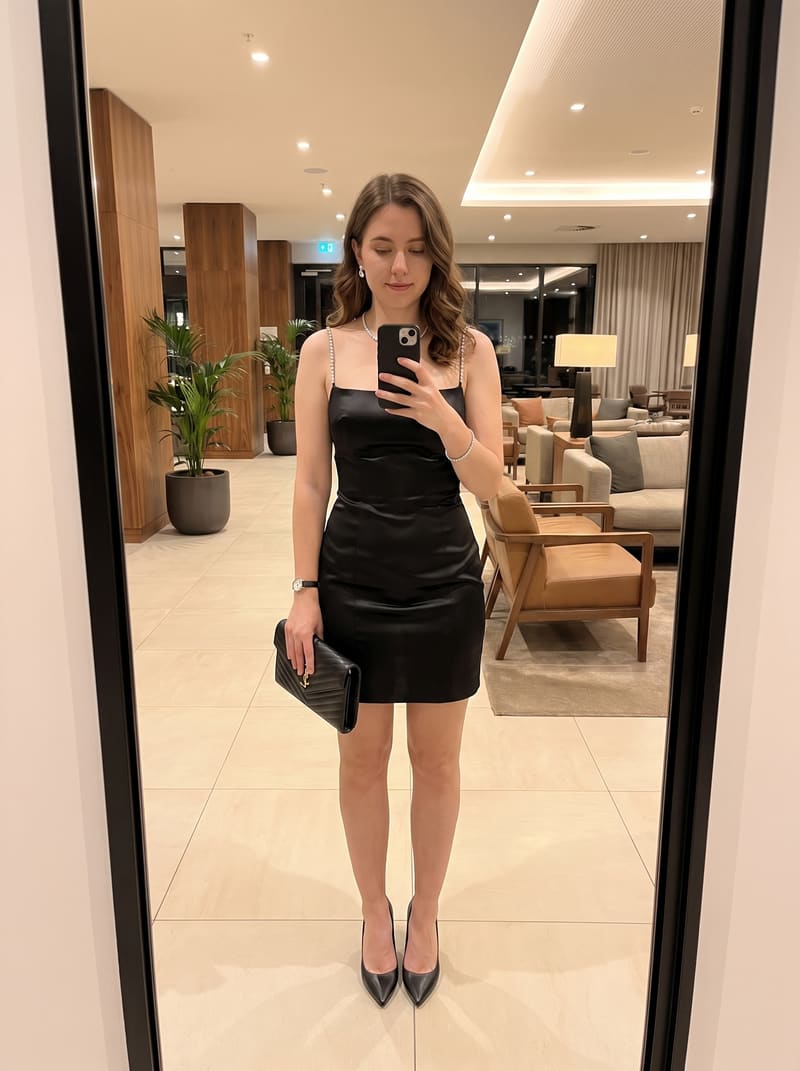
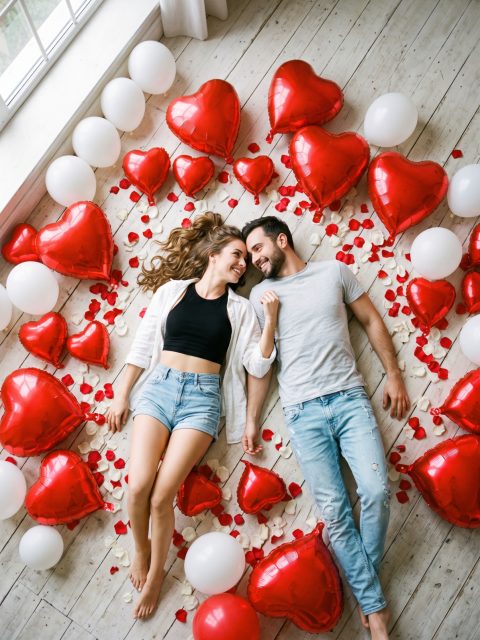
One prompt changed both the outfit and the entire scene – new clothes, new location, same person. Combine any edits in a single request and the AI keeps lighting, shadows, and proportions consistent.
BeforeAfter
The stranger in the background is gone – the AI rebuilt the scene behind them so nothing looks cut out. Remove photobombers, tourists, cars, wires, or any object you want out of the frame the same way.
BeforeAfter
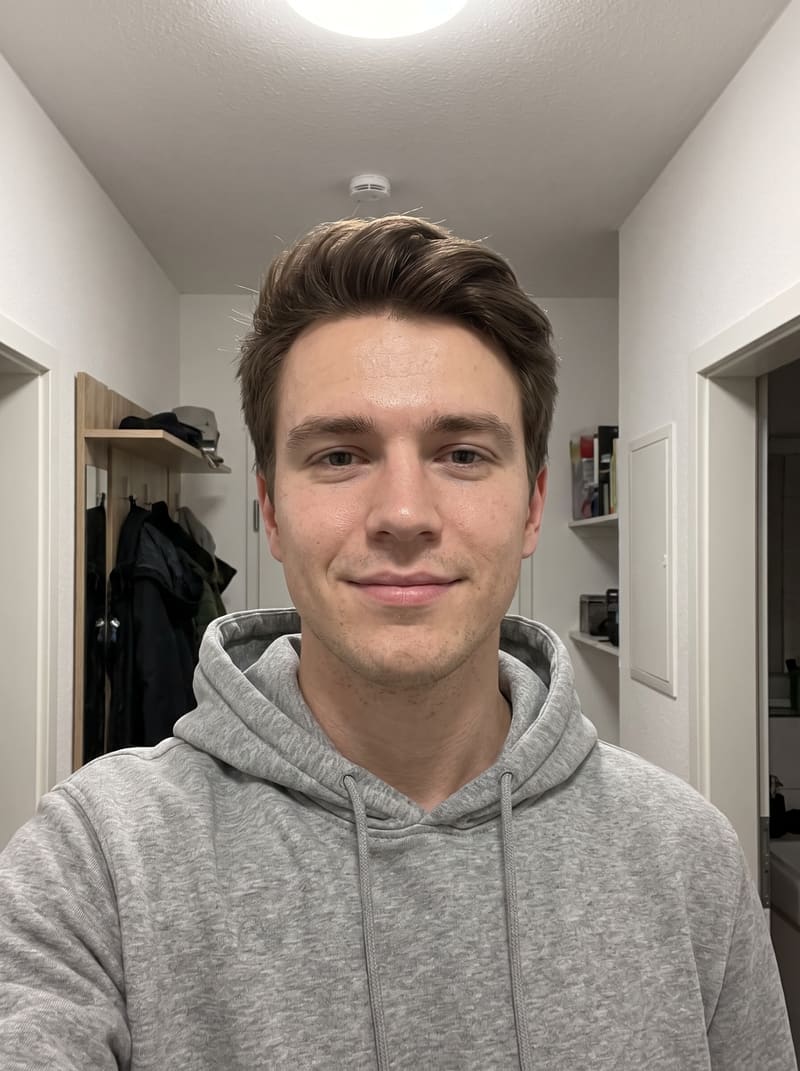
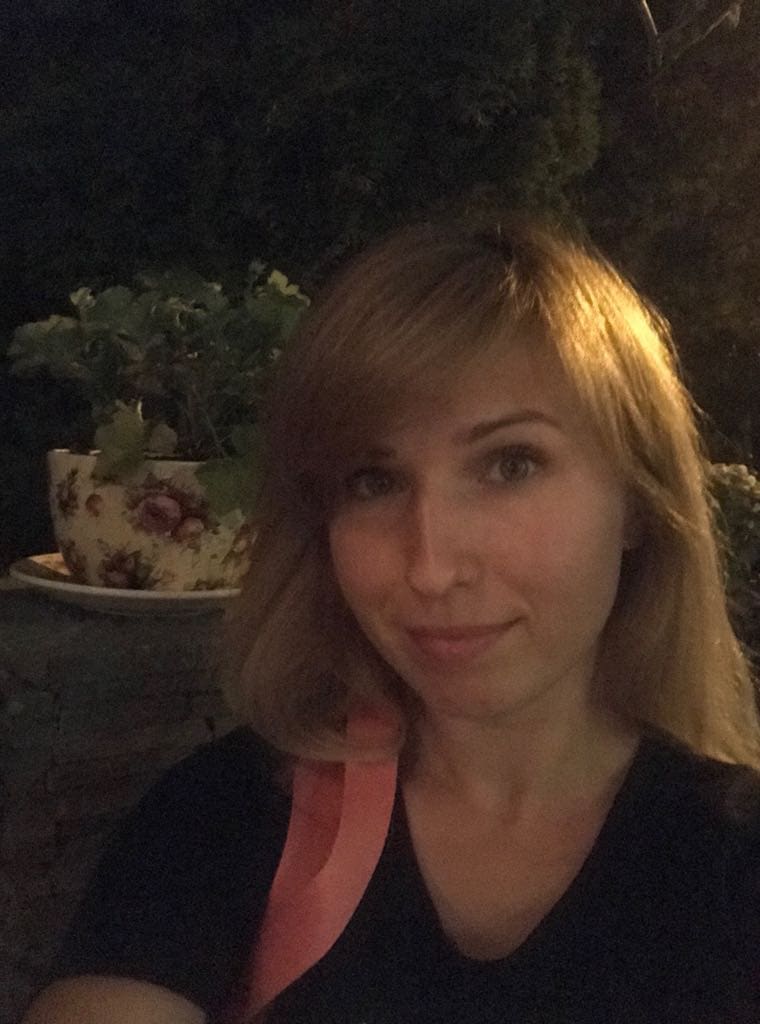
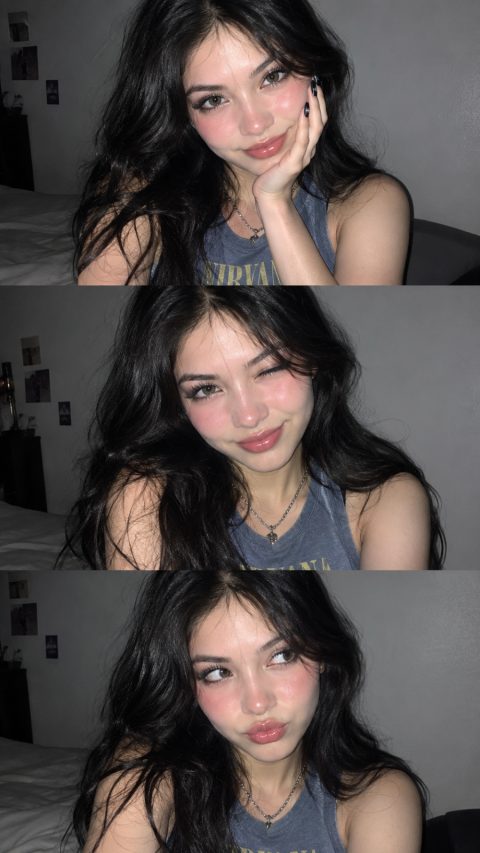
A casual phone selfie turned into a clean business headshot – studio lighting, neutral background, sharp focus. Perfect for LinkedIn, resumes, and team pages – no photographer needed.
BeforeAfter
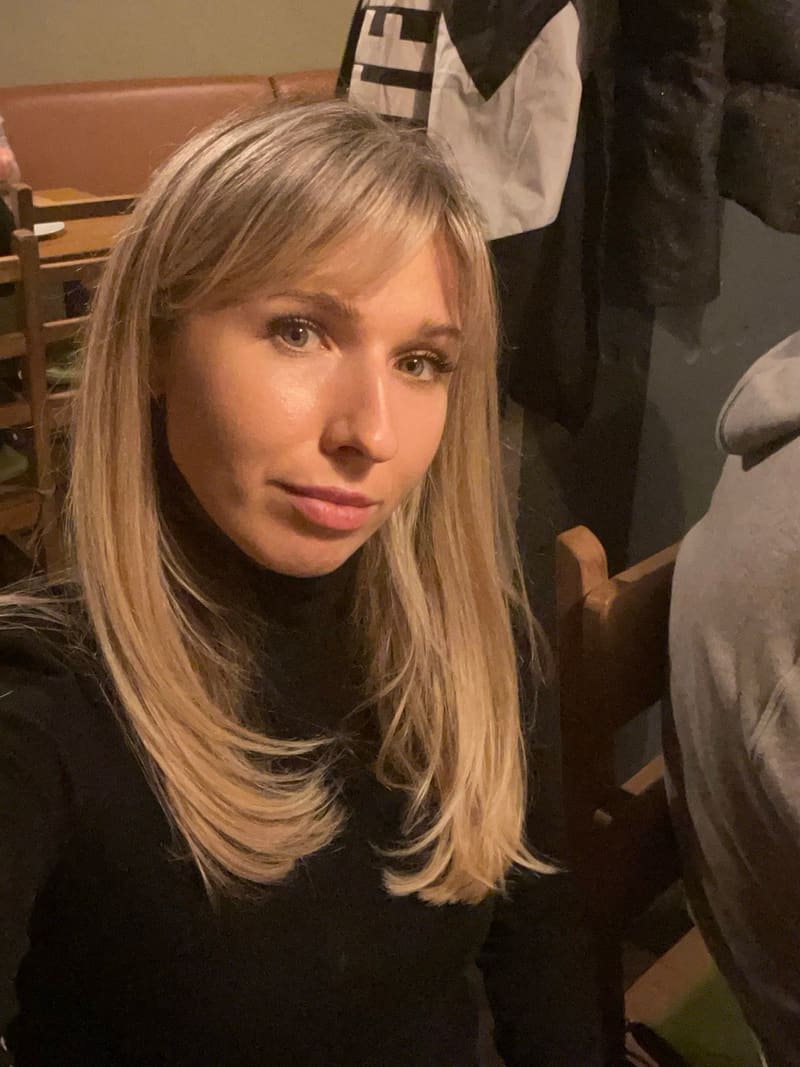
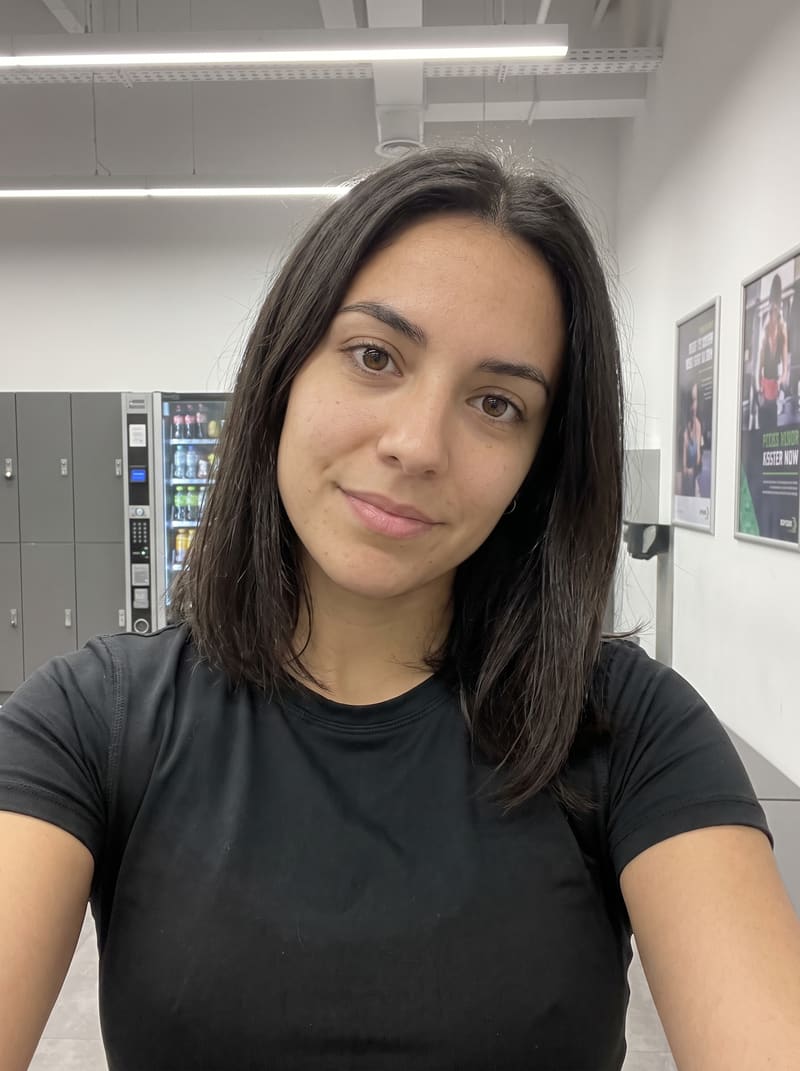
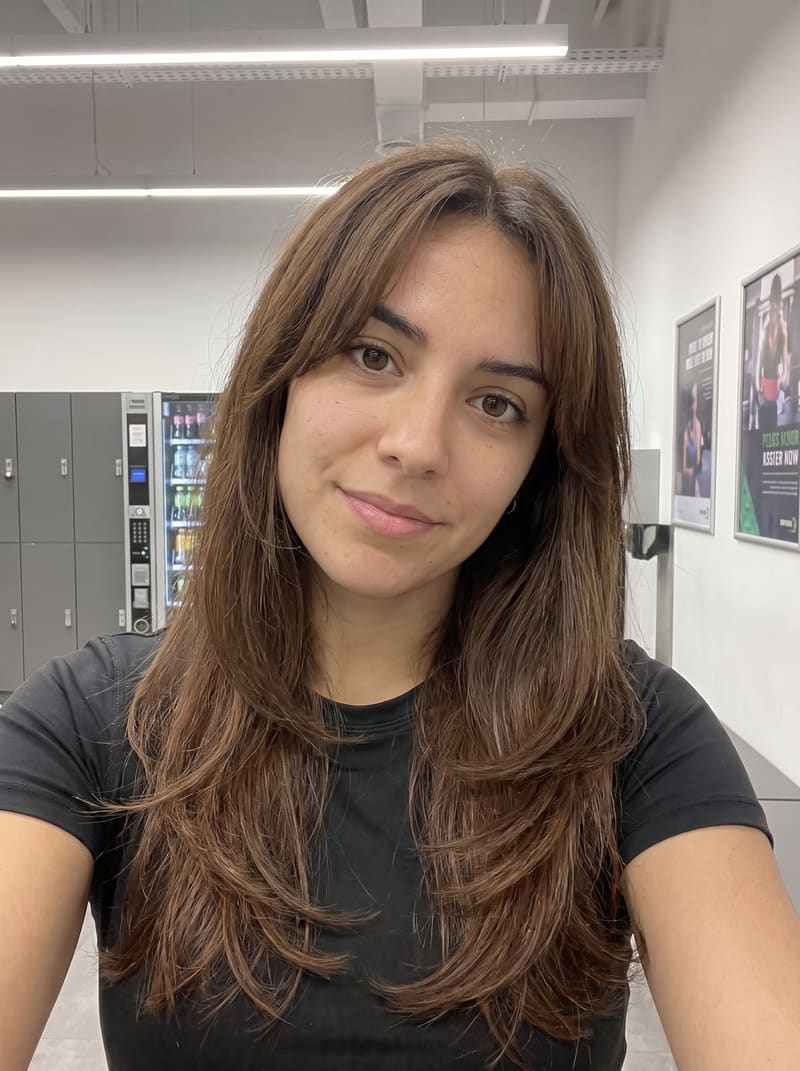
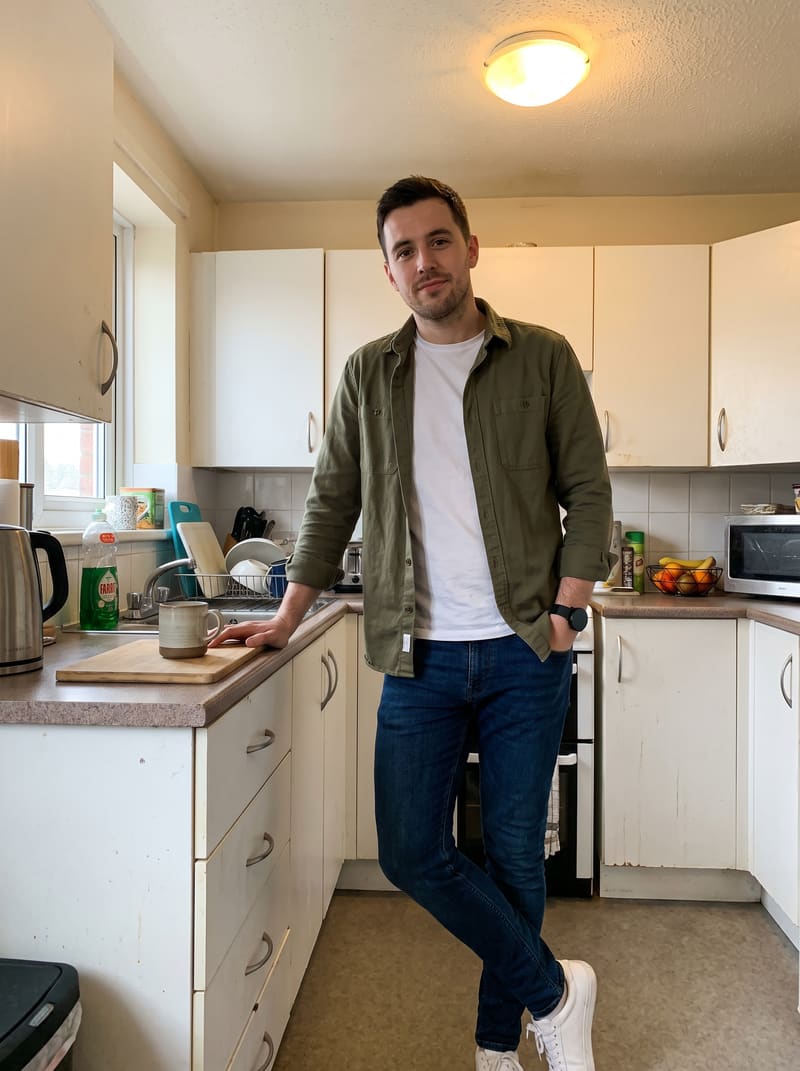
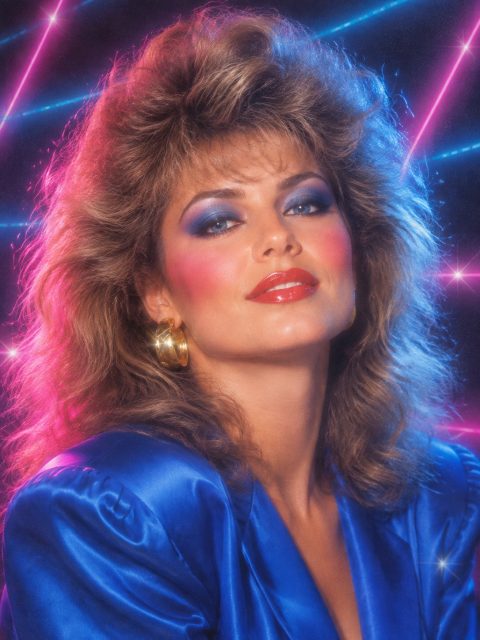
A new haircut and color – the face stays completely recognizable. Try any hairstyle risk-free before committing at the salon – from a subtle trim to a bold new look.
BeforeAfter
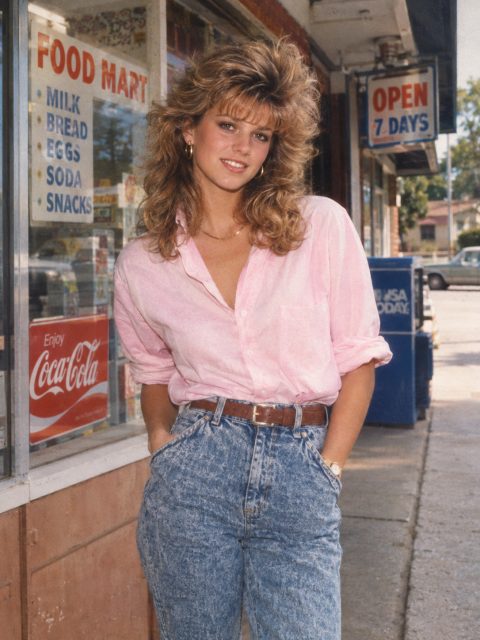
The outfit was swapped with one prompt – fabric, fit, and folds all match the pose naturally. Dress up for a formal photo or restyle an old shot without a reshoot.
BeforeAfter
The original background is replaced with a new scene, with shadows and lighting adjusted to match. Put yourself anywhere, or give product photos a clean, consistent backdrop.
BeforeAfter
Sharper details, balanced colors, and corrected lighting – the same shot, just noticeably better. Rescue underexposed, dull, or slightly blurry photos in seconds.
BeforeAfter
The AI continued the scene beyond the original frame, filling in what the camera missed. Extend any photo in any direction.
BeforeAfter
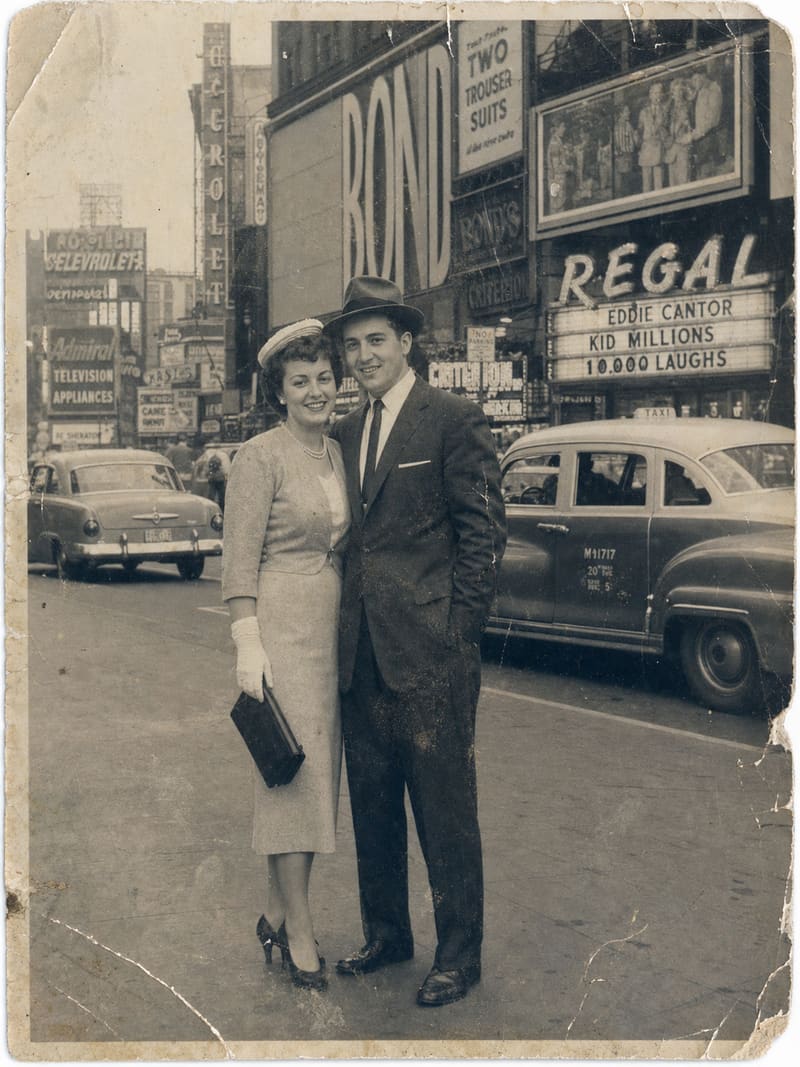
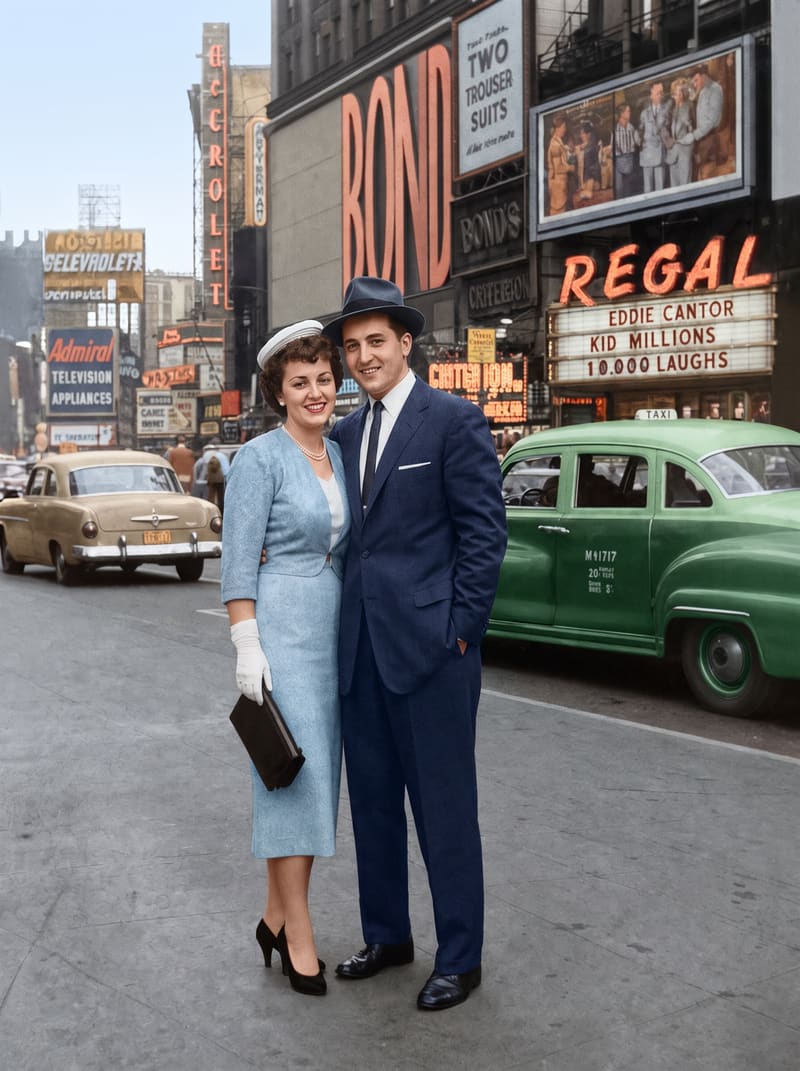
A damaged old photo, restored: scratches removed, faded colors revived, details reconstructed. Bring scanned family pictures back to life – the AI can even colorize black-and-white shots.
No images yet
Your generated images will appear here.
No saved images yet
Tap the heart on any image to keep it here.
Bin is empty
Deleted images land here for up to 30 days before they're gone for good – guest photos only until their 7-day expiry.
An AI photo editor lets you change a photo by describing the edit in plain language – upload an image, type what you want, and get the result in seconds. Here's what people edit most with Photolaria.
Change backgrounds and scenes
BeforeAfter
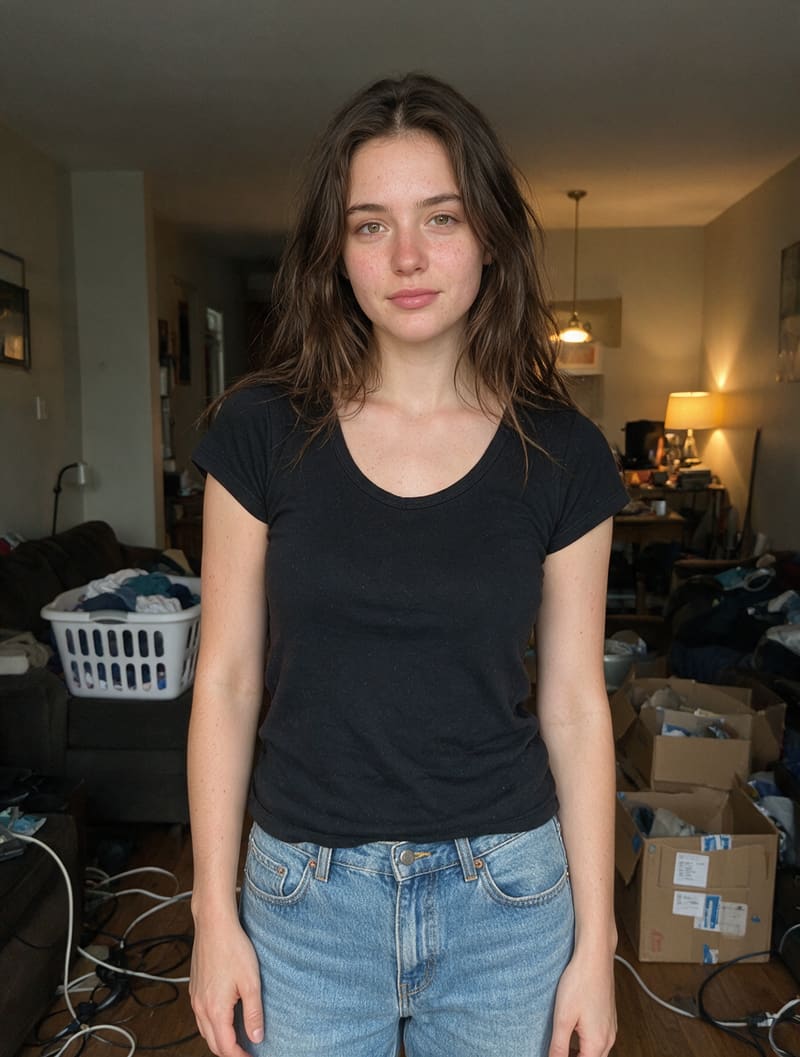
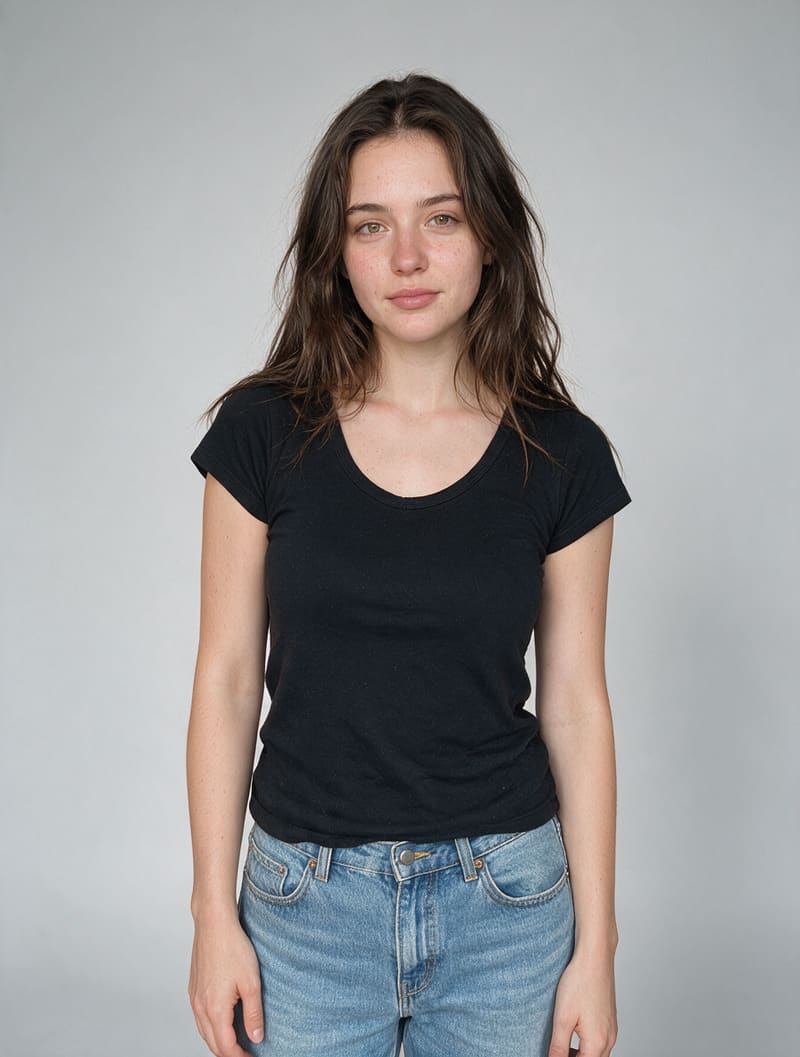
Swap a cluttered background for a clean studio look, put a portrait on a beach at sunset, or place a product on a new backdrop. The editor keeps the subject intact and matches lighting and shadows to the new scene – no masks, no layers, just a prompt.
Prompt: “Change the background to a clean light gray studio backdrop, keep the person exactly the same”
Remove objects and people
BeforeAfter
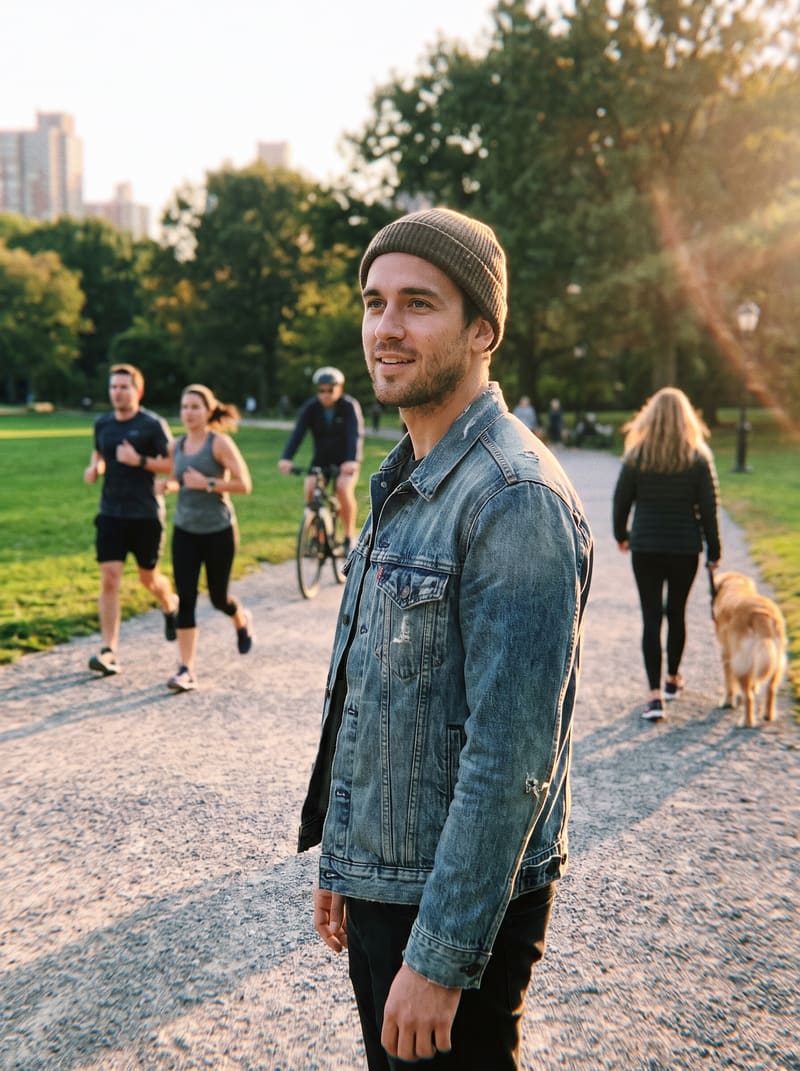
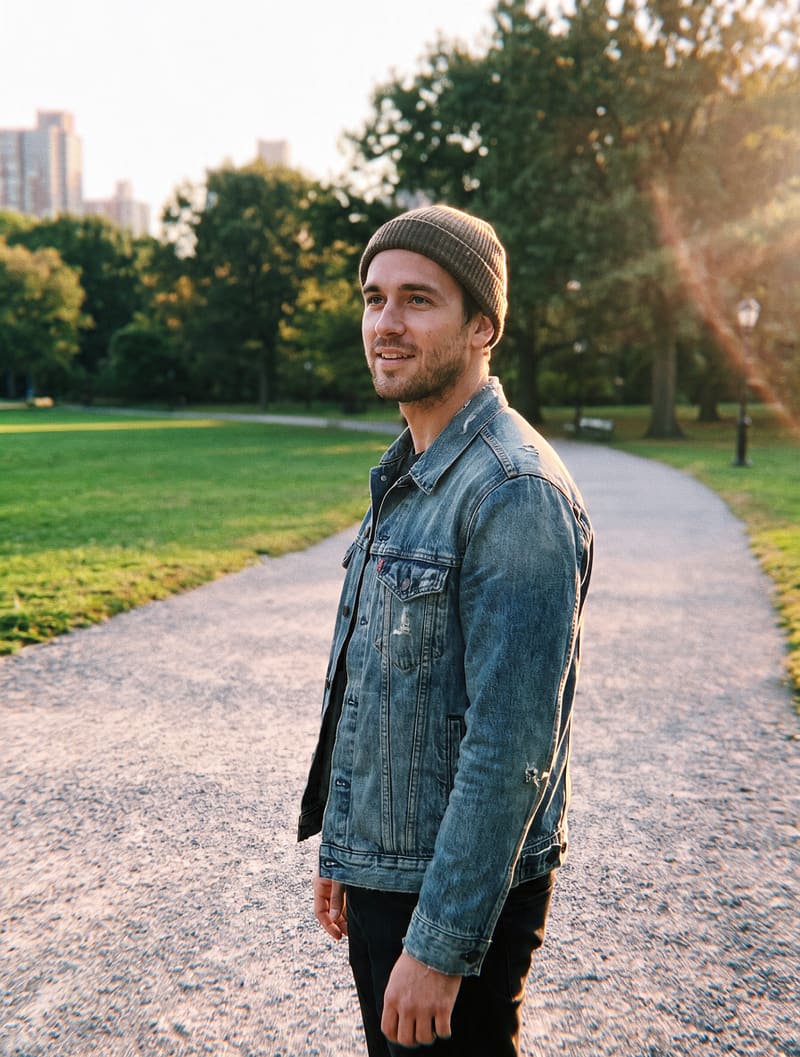
Erase photobombers, tourists, power lines, text overlays, or any distraction. The AI rebuilds the area behind what you removed, so the photo looks like nothing was ever there.
Prompt: “Remove all the people and the dog in the background”
Enhance photo quality and fix flaws
BeforeAfter
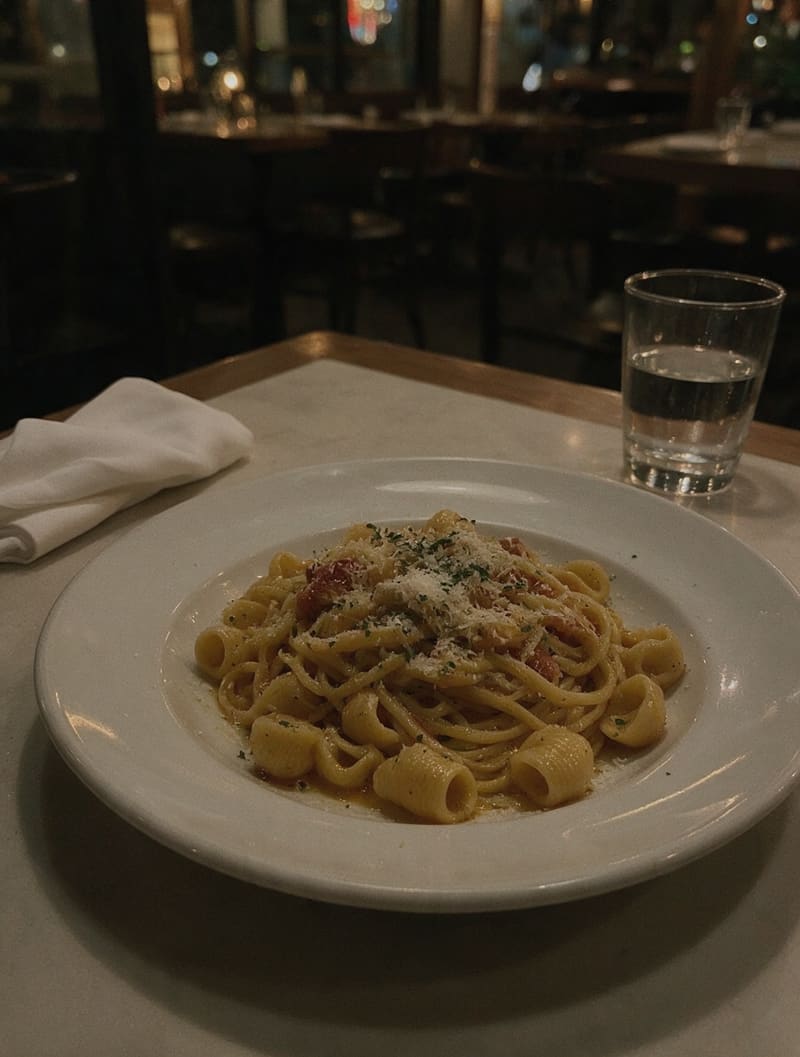
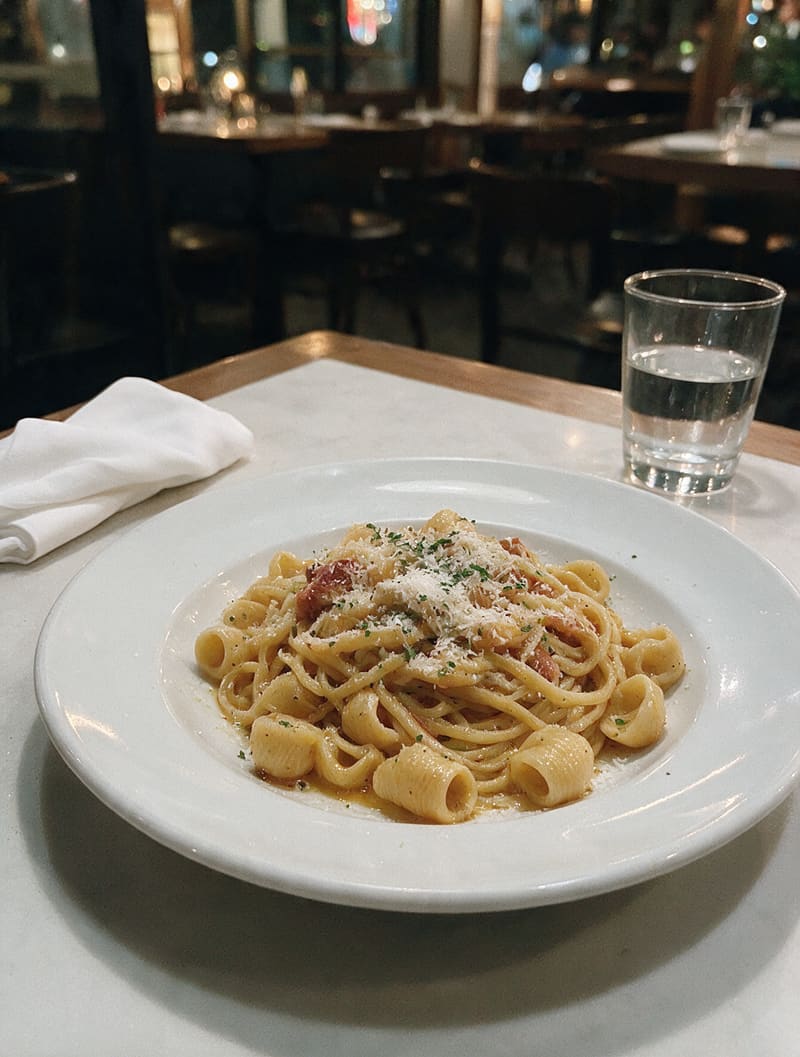
Sharpen blurry shots, fix bad lighting, reduce noise, and bring back natural colors. One prompt turns a phone snapshot into a photo that looks professionally edited. Works just as well for menu and delivery photos.
Prompt: “Make this food photo bright and appetizing: fix the yellow lighting, natural fresh colors, crisp details, keep the cozy evening restaurant in the background, and keep the dish, the plate and the exact same framing”
Restore old photos
BeforeAfter
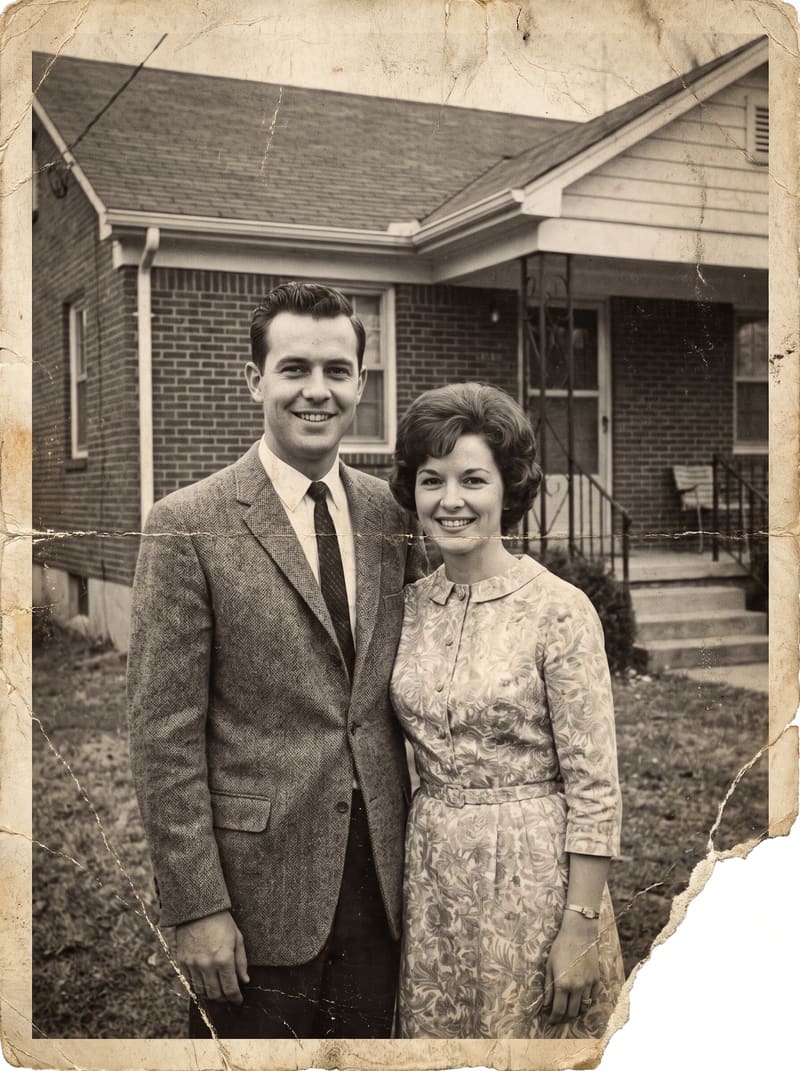
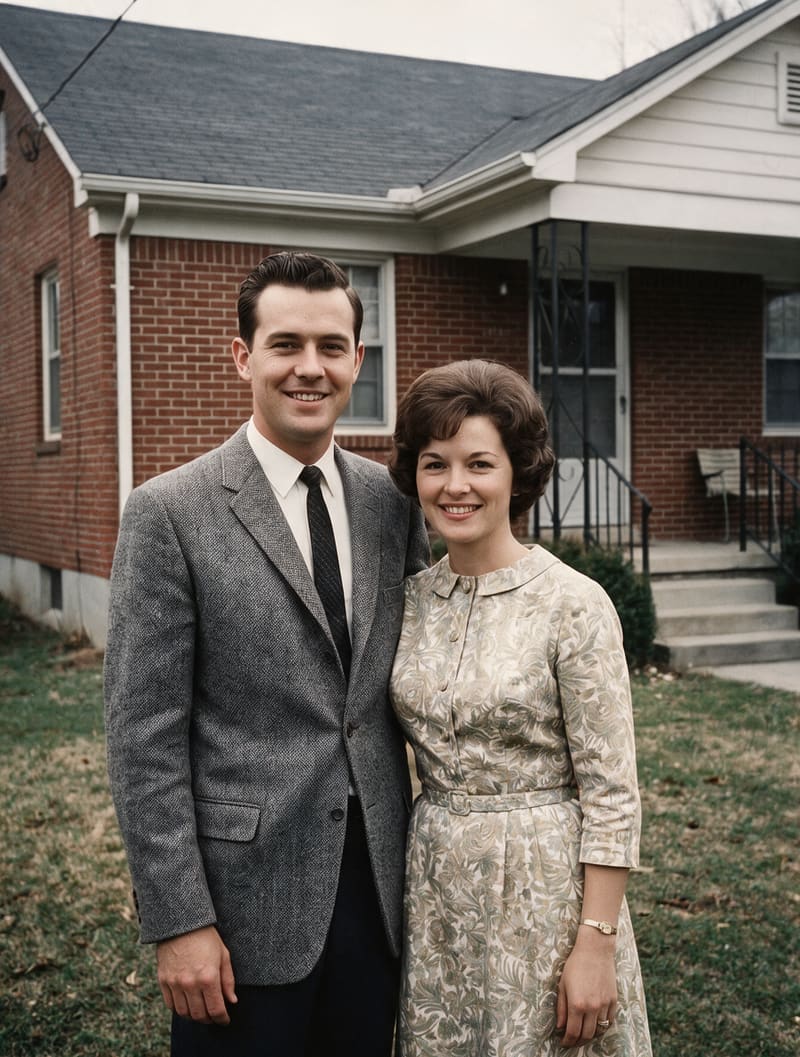
Repair scratches, tears, and faded colors on scanned family photos. The AI reconstructs damaged areas and can colorize black-and-white pictures while keeping faces true to the original.
Prompt: “Restore this old photo: repair the scratches, tears and creases, fix the fading, and colorize it naturally”
Change outfits and hairstyles, or create a headshot
BeforeAfter
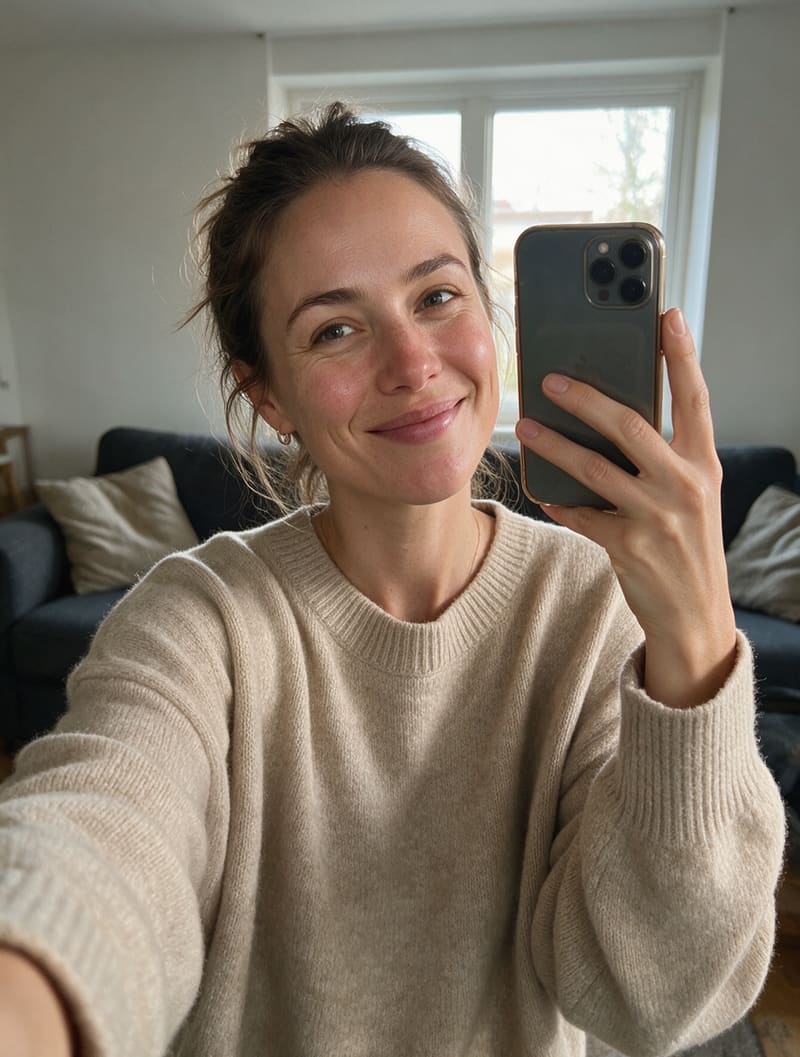
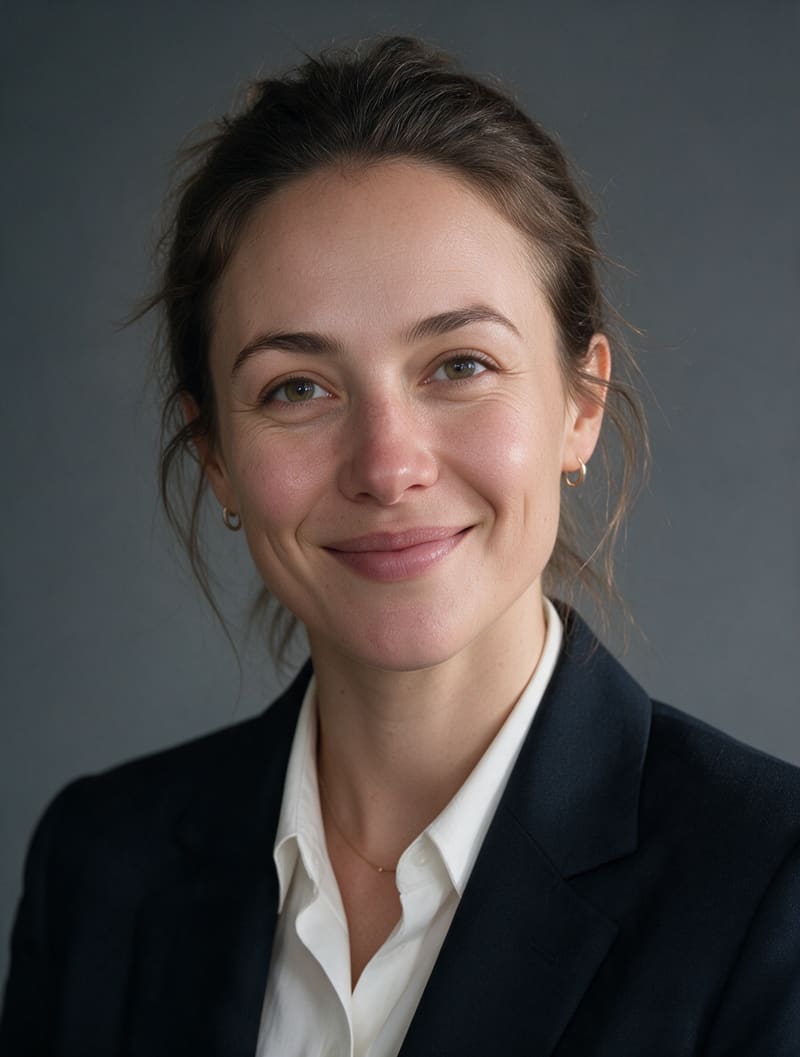
Try a new hairstyle, put yourself in a business suit, or turn a casual selfie into a professional headshot. The editor preserves your face and proportions across every edit – you stay recognizably you. A shortcut for LinkedIn profiles, resumes, and team pages.
Prompt: “Turn this into a professional headshot: dark blazer over a white blouse, soft dark gray studio background, professional studio lighting, keep my face, hair and expression exactly the same”
Create clean product photos
BeforeAfter
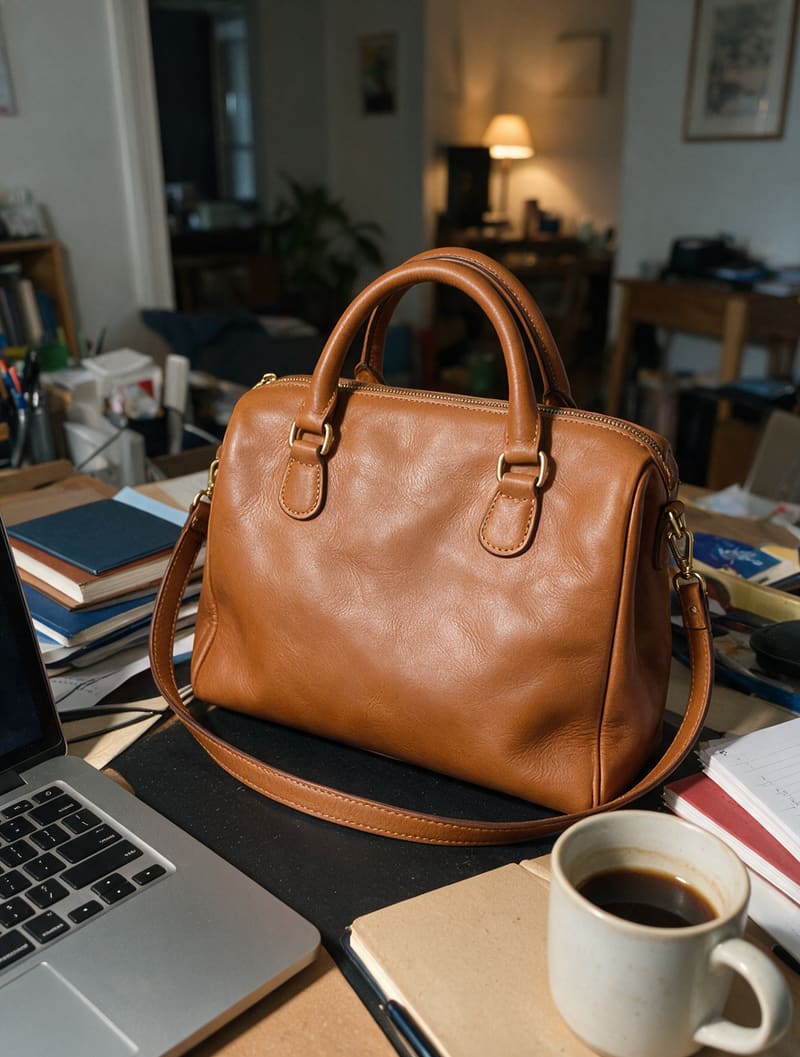
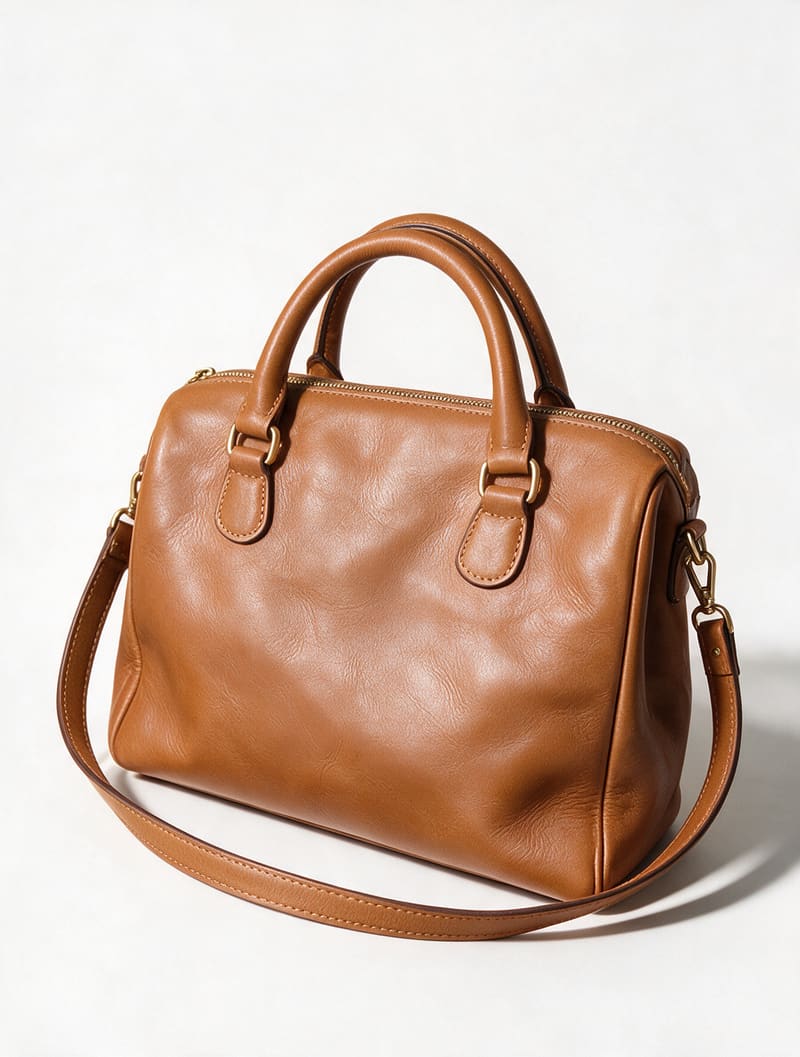
Shoot your product on the kitchen table and make it marketplace-ready: replace the background with pure white or a neutral backdrop, even out the lighting, and keep the colors true to the product. Online sellers use it to turn phone shots into clean product listing images – no studio or lightbox needed.
Prompt: “Remove the background and put the bag on a pure white background with a soft natural shadow, keep the bag in the exact same position with the strap lying the same way”
How it works
How to edit a photo with AI
Editing photos with AI takes three steps – no layers, no masks, no tutorials.
Step 1
Upload your photo
Add any photo straight from your phone or computer – a quick snapshot works as well as a studio shot.
Step 2
Describe the edit in plain language
Type what you want to change – the way you'd say it to a person: "remove the people in the background", "make it brighter", or "change the background to a beach".
Step 3
Get the result in seconds
The AI applies the edit and shows the result. Download it, or refine with a follow-up prompt if it's not quite right.
If you can describe it, you can edit it. Plain language replaces the whole toolbar – no layers, masks, or tutorials to learn.
You stay recognizably you
Faces, proportions, and product details are preserved across edits, so the result looks like your photo – not a generated lookalike.
Results in seconds
Edits that take an hour in a classic editor happen in seconds: upload, type, done. Try again as many times as you like.
Built for sellers and professionals
Product listings, professional headshots, menu and real-estate photos – one editor covers the visuals a small business needs. No studio required.
Free to start
Try the editor for free and see how it looks on your own photo first. Upgrade only when you need more.
Works right in your browser
Nothing to install and nothing to configure – Photolaria runs in the browser on your phone, tablet, or computer.
FAQ
AI photo editor – frequently asked questions
Is there a free online AI photo editor?
Yes – Photolaria currently offers bonus credits, as a guest courtesy and a larger allowance with a free account, with no expiring trial and no visible Photolaria watermark, spendable on every model except Nano Banana 2.1, Seedream 5.0 Pro, Seedream 5.0 Flash and Flux 3, which need a plan. Bonus credits are a temporary promotion, and free generation remains subject to fair-use and abuse protections. For more volume, see pricing.
What can I edit with an AI photo editor?
You can describe almost any change in plain language – it is not a fixed menu of effects. Typical examples: enhance a photo, retouch a product shot, restyle an interior photo, change a background or outfit, remove objects or people, restore an old photo, or extend the frame. Results depend on the source photo, prompt and model, so a complex edit may take more than one attempt.
How does prompt-based photo editing work?
Instead of tools and sliders, you describe the change in plain text – "remove the person on the left", "make the sky sunset orange" – and the AI applies it while aiming to preserve the rest of the photo. If you're not sure how to phrase it, the Prompts tab has ready-made prompts you can apply to your own photo.
Which AI models power the editor?
Photolaria runs on several leading models – Nano Banana, Nano Banana 2, Nano Banana 2.1, Nano Banana Pro, Seedream 5.0 Pro, Seedream 5.0 Flash, Flux 3, GPT Image 2 and GPT Image 2.5 – and you pick the one for each edit; each has its own credit cost, shown on the button before you generate. There's also a dedicated Remove Background model that cuts the background to transparency without writing any prompt.
What does a free account add?
A free account gives you 10 extra bonus credits right away (the sign-up bonus stays spendable for 30 days) and a private Library that syncs across devices with unlimited image history.
Are my photos private?
Yes. Your uploads and results are private on every plan, including Free. You can delete individual images, or use "Delete my data" in the Bin tab on every tool – guests and accounts alike – to remove all images and generation history from live systems after confirmation. If you have an account, "Delete my data" is also in your profile, where you can delete the account itself and all of its data. Short-lived backup copies expire on their rotation schedule. Guest photos expire automatically 7 days after creation.
Can I use edited photos commercially?
Yes – commercial usage rights are included for everyone, on every plan, free or paid. Results have no visible Photolaria watermark, though providers may include invisible provenance metadata. You remain responsible for applicable law, third-party rights and provider policies – see the Terms for details.
What is the best AI photo editor?
Results depend on the source photo and the edit, so no single model is best at everything. Photolaria offers Nano Banana, Nano Banana 2, Nano Banana 2.1, GPT Image 2, GPT Image 2.5, Flux 3, Seedream 5.0 Pro, Seedream 5.0 Flash and Nano Banana Pro in one editor, letting you choose the balance of speed, detail and subject consistency for each edit.
Which photo editor uses AI?
Traditional editors center on manual tools and sliders, sometimes with AI features added on. Photolaria is AI-first: most edits – from object removal to restoring old photos – begin with a plain-language prompt, while the dedicated Remove Background model is a one-tap tool that needs no prompt.
Which AI photo editor gives natural results?
Natural-looking results depend on how well a model preserves faces, lighting and texture while following the requested change. Nano Banana Pro, GPT Image 2.5, GPT Image 2 and Seedream 5.0 Pro are strong options in Photolaria. You can re-run the same prompt with another model and compare the results in your Library, with each run charged separately.